27/03/2008

Art Galleries

Like many schools we have regular displays of children's art work on the walls.
We have taken digital photos of the work on various displays and made them into a virtual display on our website.
The photos were imported into 'Movie Maker' and a piece of music added.
The 'Vision On Gallery' tune was downloaded from this website

See these examples.

The 'Vision On Gallery' tune was downloaded from this website


26/03/2008

Data Logging

At Robert Hitcham's we use Logit Explorers data loggers.


They have 3 basic functions: temperature, light and sound.


You can also buy extra sensors such as heart rate monitors and temperature probes.


Children find them easy to use. They come with software which enables you to transfer data on to a computer / laptop.


Logit also gives you a booklet of suggested activities.


There are lots of uses for data loggers in Science, Maths, Geography and Physical Education. See some suggested activities on Kent's NGFL Website


Logit Explorers are made by Logotron - see their website

You can get Logit Data loggers with Tesco vouchers this year

Each one is 7500 vouchers - see Tesco website
You can also get accessories from the Tesco catalogue such as heat probe for 500 vouchers.


This short video shows children using data loggers to record their resting pulse in a science leson.

Put a clock on your website or blog


Get a free clock like the one on the BBC website.

Go to this website. Choose a clock style and copy & paste the code onto your blog or website.

25/03/2008

Audio Recording

At Robert Hitchams we have been using a high quality sound recorder by Edirol. It has stereo microphones and records in MPS format. We have several R1 versions - see pictures. Edirol now make a smaller R9 model (left).
They have a flash memory (like a memory stick) and you can transfer the files with a USB cable straight on to a computer. The files can then be played using Media Player or Real Player. You can also edit them in Movie Maker.


At Robert Hitchams we use them regularly in Liteacy lessons for recording children's speech - in poetry, debates or language development.

Watch the video below of a child using a sound recorder in a literacy lesson.


We have also made use of them for recording narrations to go with presentations in a range of subjects such as science or geography.


The quality of recordings is very useful in Music. The children can record their performances and replay them.
We have recorded choirs and instrumental groups. The staff have also found the Edirol very useful for recording backing music for school productions. Listen to the examples below of piano and keyboard recordings. One of our teachers recorded the piano music which would be used in the KS1 & KS2 Christmas productions. The recordings were transfered onto CDs which were given to each class to practise with.
The MPS recorder can be set to different settings such as voice or in a hall.


These audio recorders are not cheap - over £250 but I believe they are worth it because of their versatility, portability and high quality. They use two AA batteries which last for several hours of recording. Each recording is saved as a separate file. Rather like taking digital photos the children can make multiple recordings and keep chosen ones on the computer.

The recorders do not have speakers but you can listen to recordings with headphone or via your computer (with a USB cable).


Look at the Edirol website for further information.

07/03/2008

Touch Typing

At Robert Hitcham's we, like most schools, are aware of how much word processing that children now do. We have been thinking about the importance of typing skills to children in the technilogical world which they are part of. Children need to become more efficient typists if they are not to waste valuable learning time.
We have been looking for some software or websites that teach typing skills to children.
The BBC website has a new touch typing service which we would recommend.
Click on the image to go to the site.

13/02/2008

Embedding ICT in the Curriculum

What does embedded mean?

Children should be able to use ICT in their learning without needing separate 'computer' lessons. In the same way that children should know when to use a calculator in maths, ICT should fit seamlessly into the curriculum. Ideally children should not need to leave their classroom in order to use ICT. The use of laptops, classroom computers, the IWB, digital cameras, data loggers, electronic toys etc should all be part of everyday lessons. ICT does not need to become a trip to the 'computer room'.
At Robert Hitcham's we have just started using an online resource called iTeachers. It is a complete ICT scheme of work and software training tool for primary school teachers.


iTeachers is a suite of over 200 video tutorials - iLessons - combined with drag and drop planning grids - iPlans- designed to revolutionise how you teach your entire ICT curriculum.


*give teachers lacking in ICT confidence the skills and ideas to teach cross-curricular ICT.
*ensure that ICT across the school is fully embedded into the curriculum.
*help schools to get full value for money from their existing ICT investment.
*save teachers hours and hours of trawling the internet as well as hours of planning time.
*raise standards of ICT teaching and learning.

The tutorials are great. They would be useful for both teachers and children to look at.


See sample lesson plan


See demo of the site


We would recommend that you have a look at this site. ICT really should be embedded into the Primary curriculum and I am sure that iTeachers could help you do this. At Robert Hitcham's we are looking at making links between our existing curriculum plans and the ICT resources in iTeachers.

11/02/2008

Our School Website


The Robert Hitcham's website has been running for about 10 years. It was created and built by Andrew Trythell - who left the school Summer 2007. It has become one of the largest and most popular school websites in the World!

6 of the most popular sections on the Hitcham's website appear on the top list of a google search - see images.

Type the word 'mosque' into google and the Hitcham's website comes 2nd on a list of over 5 million references! Skeletons is 5th, Habitats is 3rd, Synagogues 8th, Indian Art 4th and Phonics 3rd.


We know that the site gets nearly 1.5 million 'hits' a year. During term time there are over 5000 hits per day and on average about 30,000 a week. People have visited the website from 113 countries.

20% of the visitors to the website come from google. In other words people using a search engine to look for teaching / learning resorces are referred by google to our website. Most of the others are referals from other education websites such as 'teachingideas'.


We are able to track the popularity of the website and particular sections / pages thanks to a detailed tracker from a company called 'Hitmatic'. This information is helping me understand which parts of the site are worth adding to / updating. I can also use these popular pages to make links to other new sections of the site - which I hope will become equally popular.

The popularity of the website depends mainly on the quality of the resources so it is important to keep these up to date. It is fascinating to know that so many people from around Britain and the rest of the World make use of our website and reassuring that the work put into creating the content of the site is worthwhile.


01/02/2008

Creating your own School Blog

It is very quick and easy to set up your own school blog.
It is a free service hosted by 'Google'
Go to the google homepage and create an account.
Your username for a blog will be an email address - best to use your school admin or school personal address.
Create your own password and a name for the blog.
Look at the next steps for personalising the settings
of your blog followed by 'posting' to your blog.


ICT Register

Sir Robert Hitcham's is a member of the ICT Register - a unique database which captures ICT and eLearning expertise in cutting edge schools and learning centres across the world.

The Register website (click on the logo) has case studies, articles and links to each of the schools on the register.
See the entry for Sir Robert Hitcham's


Every year the ICT Register holds a conference. This year it was at Loughborough University on January 29th.


I have put a link below to a presentation by guest speaker Russell Prue about how ICT is rapidly expanding. It is vital that schools appreciate the impact that ICT is having on children's lives and how we need to prepare them for a future dominated by ICT.


Shift Happens

See Russell's website

31/01/2008

Embed videos

This video clip is from 'You Tube'.
Giving children open access to the You Tube site has issues to do with the nature of some material. i.e. you would not want children to search their way through anything on the you tube website.
However, You Tube is quickly becoming the richest source of educational mateial on the intenet.
As a teacher you can copy the code for a video and paste it onto your own website or blog. Your pupils can then safely watch these videos without being on the you tube site.
I have used this particular video in an RE lesson about Islam - I just did a search for 'Mount Hira'.

25/01/2008

20/01/2008

School Blogs

A blog is a web based website. It is a bit like having a hotmail email address (which you can access from any computer) as well as one which you can only use from your home PC.
Traditional websites are built using software like MS Frontpage on a designated PC. Such a school site can be difficult to maintain and keep up to date. The work load tends to fall on one member of staff. Creating new pages and their content takes time.

Why should you have a school blog?
Blogs are FREE - see Creating your own blog
They require NO SOFTWARE
Blogs can be updated from ANY COMPUTER with internet access
The pages and content are EASIER to create
All links and folders are AUTOMATICALLY created for you
Blogs LOOK COOL and professional very little effort
Blogs can have MULTIPLE AUTHORS
Blogs look UP TO DATE because the newest items always move to the top and older items are automatically put into an ARCHIVE

My advice would be to KEEP your existing school website but ADD a link to a BLOG from your homepage.
Most schools have key information which only changes once a year or term. Simplify your website. Keep fewer semi permanent pages with important school information.
Use a blog for all the other things which go on in school every day. Encourage several people to become authors of the school blog including the school office, headteacher, governors and parents association. Under adult supervision the pupils can also create content for the blog. A teacher can log on to the blog on their interactive whiteboard and get the children to write to the blog in the classroom.
A school blog can soon become an effective and popular means of communicating between school & home / outside community.
It can also be used as part of teaching and learning. Post children's work or links to learning resources.

At Sir Robert Hitcham's we have quickly developed a blog with incredibly varied content which covers the whole range of school activities. The blog also looks good because it is very easy (compared with normal website) to include pictures and video clips. In a large school you might decide to create several blogs. For example: different Key Stages, an Office Blog, Departmental Blogs etc.

It is important to always remember that child safety is paramount when posting to the internet and blogs are very easy to upload.
See further blog entry on how to CREATE YOUR OWN BLOG.

31/12/2007

Visualisers

A visualiser or Flexi Cam is like a webcam.
There is a small digital camera in the head of a flexible arm.


The visualiser is plugged into a computer via a USB cable. There is no need for a power cable. The camera takes the required power from the laptop.


As you can see in this photograph the flexi cam image appears as a live image on the computer. It can then be shown to a class on an interactive whiteboard via a projector. You can freeze the image and write on it (on the IWB).
A photo can then be saved by pressing a button on the computer.
A flexi cam can also show live video. This is rather like the cameras that you see when you enter certain shops. Again it can be used via a projector so that a whole class can follow a demonstration or activity.
Visualisers vary enormously in price. I have been using a Flexi Cam (by Ken-a-vision) for about 3 years in my previous school and found it to be a valuable and 'flexible' tool in the classroom. At Robert Hitcham's we have just purchased a visualiser / flexi cam for every classroom from Aver Vision. We have paid about £230 for each visualiser. They have a 3mega pixel camera and video capture. It is worth shopping around for a good price.

They can be used to show documents, children's written work, passages from a book, paintings / drawings, 3D work or objects brought into the classroom. It can really save on photocopying. One of the best learning uses is when using the live video function. It is great for demonstrating a skill to the whole class. Children who can do something really enjoy showing others via the flexi cam. It is much better than asking the whole class to 'gather round'.


In order to make the most of a flexi cam then it is worth getting into the habit of setting it up every morning. There are unplenned moments when it will become useful in a lesson - so it is best to have it ready. Don't forget that it is basically a camera so it canbe used to record the children's work in a whole range of subjects. You can also zoom in for a close look at work or objects. Some visualisers can be connected to a microscope.
It is a fantastic aid to learning and I would recommend one to teachers of all age groups or subjects.

30/12/2007

More Ideas for Using Photos

Here are a few more advanced ideas for using photographs with your 'MSOffice' documents.

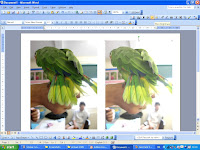
If you want to use multiple images which might overlap - then use the 'order' function. Right click on a picture - bring to front or back as required.
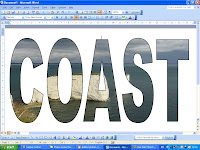
You can use a picture to fill a piece of 'Word Art'. Use the fill with colour tool (dawing toolbar)- go to fill effects - picture - choose picture from your files.
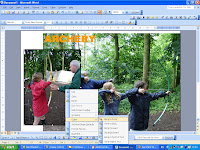
You can put text over a picture by using a 'text box' - see the 'Drawing' toolbar. The pictur will need to be 'Behind' - see wrapping or order. You can also use shapes. Put text in shapes
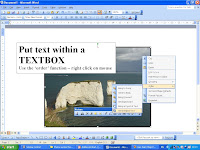
or 'colour in' the shape with a picture.

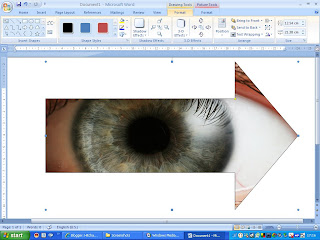
Using Photos in Documents

Here are some ideas / examples of what you can do with a photograph in any 'Office' document.
Click on each image for a full size version.
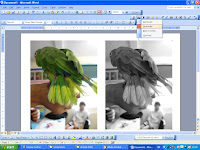
There is quite a lot you can do with a image without having to use a photo editing program.
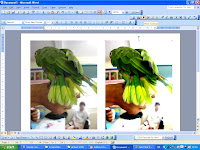
You can adjust the colours on a photo with the picture toolbar with MSOffice. It is worth getting to know the picture toolbar - right click on a photo to bring up the toolbar.
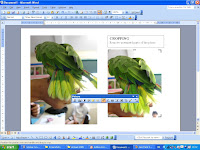
Each of these examples has been 'edited' with MSWord but you could equally use these functions in powerpoint, excel or publisher.
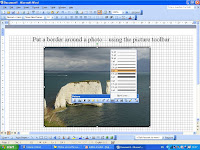
You can also add a border, crop or resize a photograph. In order to put a photo within some text you need to use something called 'wrapping' - the little dog on the picture toolbar.
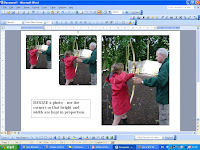
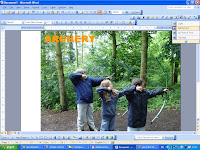
A picture will normally need to be 'tight' or 'behind text'. This will enable you to move it around your document and will bring up toggles in each corner of the photo.
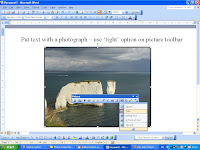
See next blog for more ideas.